- if you don't know how, this is done by right clicking the file
- after that, you click "Open"
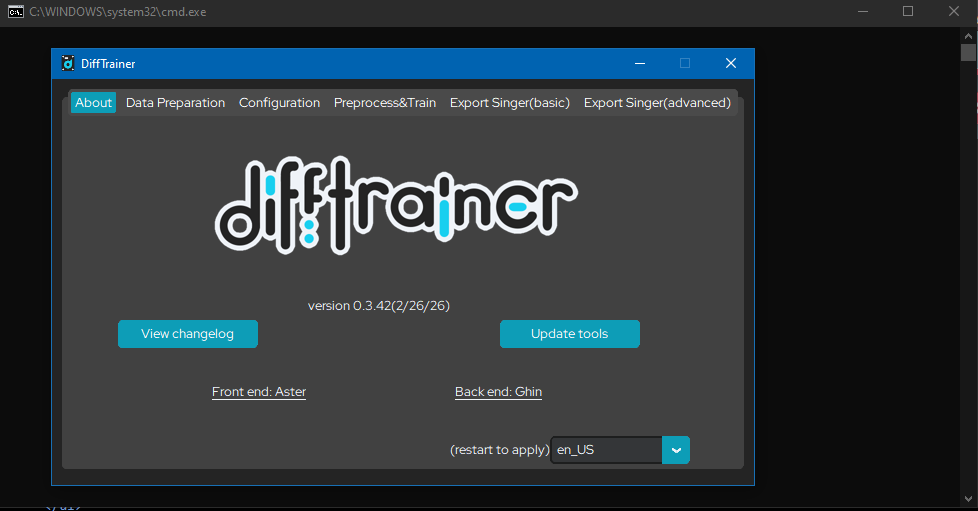
this is a guide for local training using difftrainer on windows
in order to train locally, you need:
*you might be able to get away with less. lower the batch size if you're this low
**difftrainer compatible versions of cuda toolkit are: 11.8, 12.1, 12.4, 12.6, 12.8, 12.9
once you have cuda toolkit installed, you can move on to difftrainer installation
this section assumes you have never used python before. the download link below also contains a guide for installation if you already have python
difftrainer can be downloaded through this link
now difftrainer is fully set up!
back up your files before you do ANYTHING below!
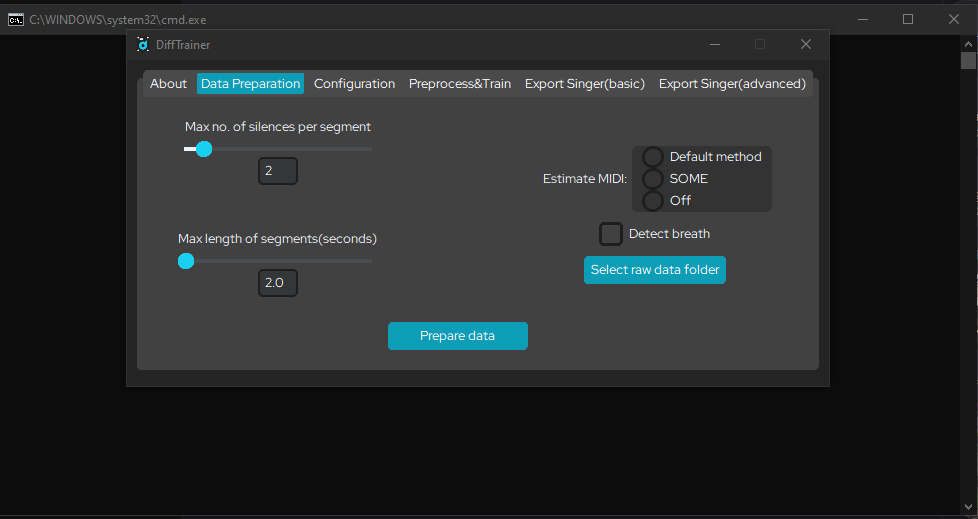
you should now open the data preparation tab. this is what it looks like:
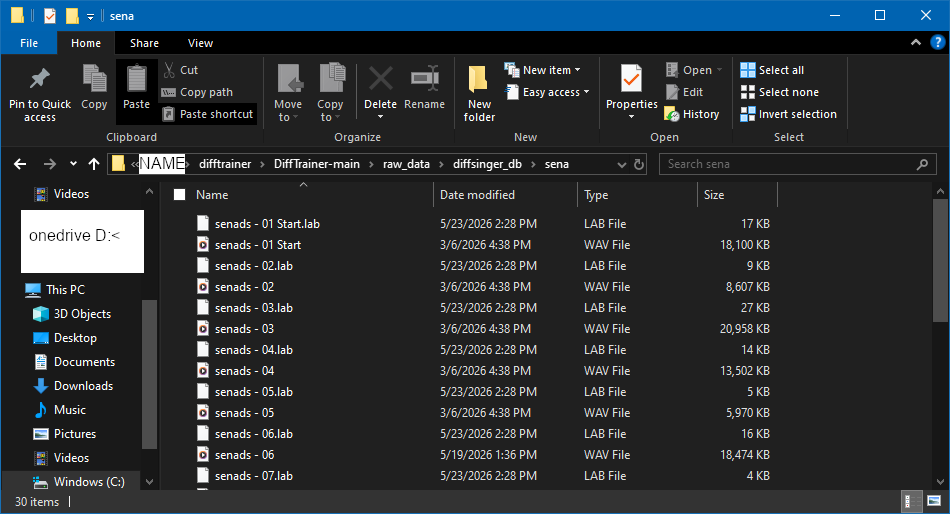
now, you should move your .wav and .lab files into the Difftrainer-main/raw_data/diffsinger_db/[your diffsinger's name here] folder. they should look like this:
now, in the data preparation tab, select the raw data folder. here, you want to select "diffsinger_db". then, you will select SOME to estimate midi, processing power permitting. then, you will click "prepare data"
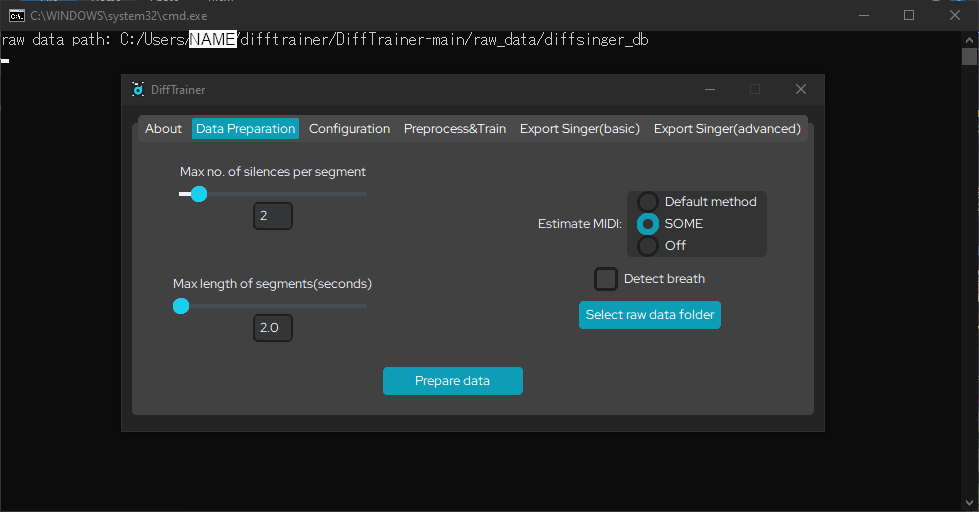
once it finishes, the command prompt will say "data segmentation complete!" from here, you can move on to the configuration tab
the configuration tab looks like this:
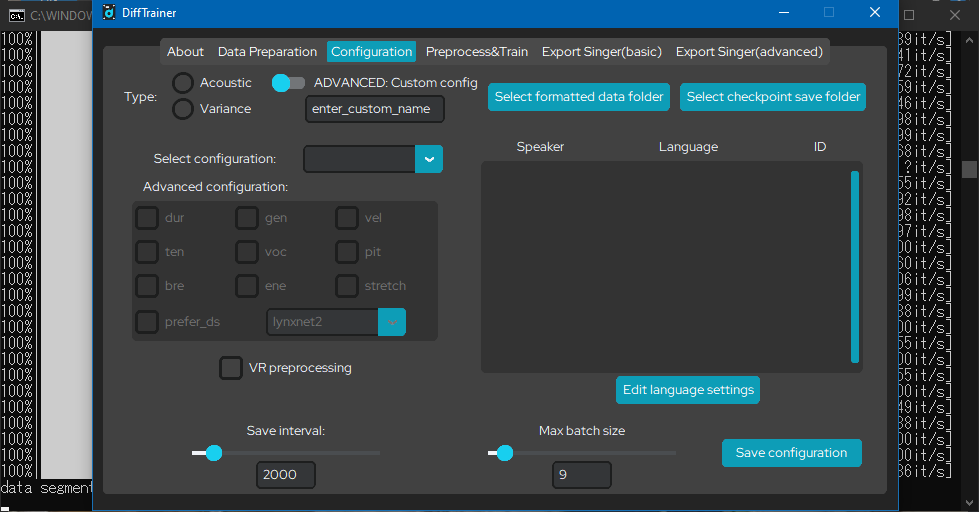
click "select formatted data folder." i personally leave it the same as the raw data folder, so i select diffsinger_db again. now, it will display your diffsinger here:
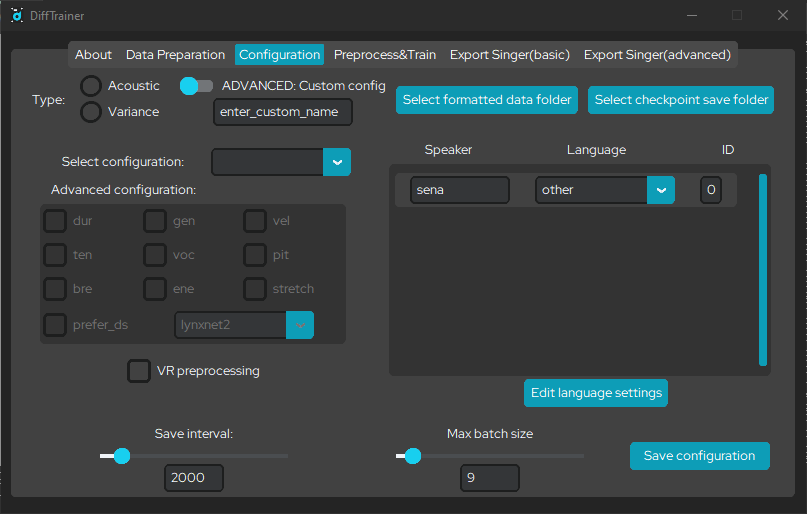
real quick, before you continue, you'll want to compress your original .lab files into a .zip, go to mae blythe's phoneme extractor, upload your .zip file, process it, and then it will output a custom dictionary for you. from here, find DiffTrainer-main/Diffsinger/dictionaries/ja-phonemes.txt. open "ja-phonemes.txt," delete the contents of the file, then, copy and paste what the website output in its place. you will then remove the "pau" phoneme from the dictionary. after this, save the file and close notepad.
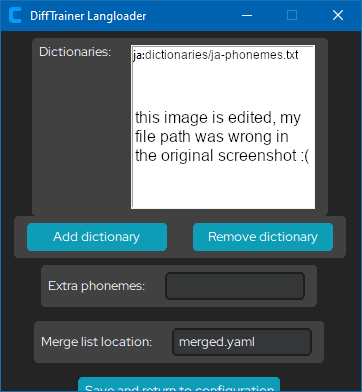
now, in the dropdown under "language," select "ja." you will then select "edit language settings." click on any other dictionaries that are displayed by difftrainer langloader, and select "remove dictionary." the only one you want remaining is the "ja" dictionary. you will also now open "merged.yaml" located in the same folder as "ja-phonemes.txt." you will now delete everything written below "merged_phoneme_groups:," and then save the file. after this is done and your langloader looks like the screenshot below, select "save and return to configuration." if you have not seen the langloader, it may be hiding under another window.
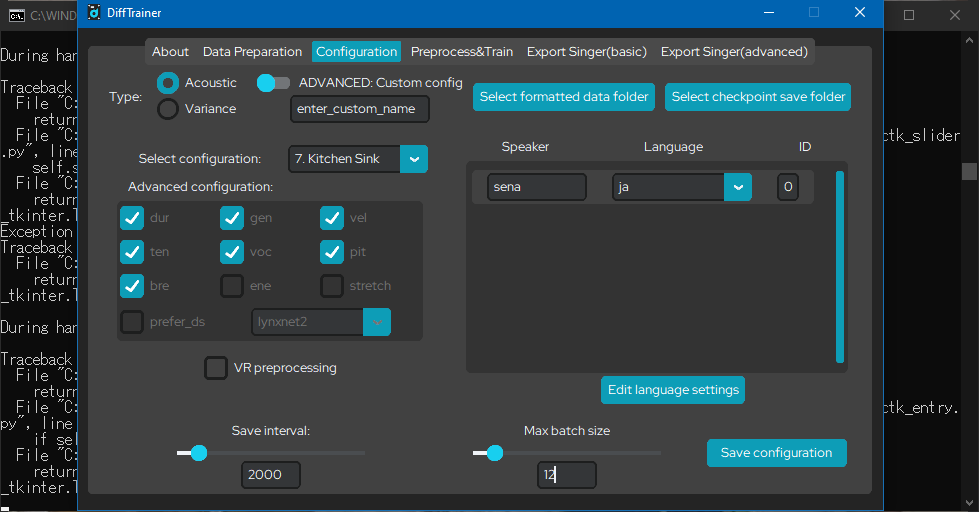
now that the dictionary is set, in the configuration tab, you will select the type "acoustic." you will then select "kitchen sink" from the "select configuration" drop-down menu. depending on what your machine can handle, it is also recommended to adjust the batch size here too. i personally use a batch size of 12, but if you have a lower end machine, you may want to have it be lower than the default, which is 9. you will now click "save configuration."
this is the preprocess and train tab:
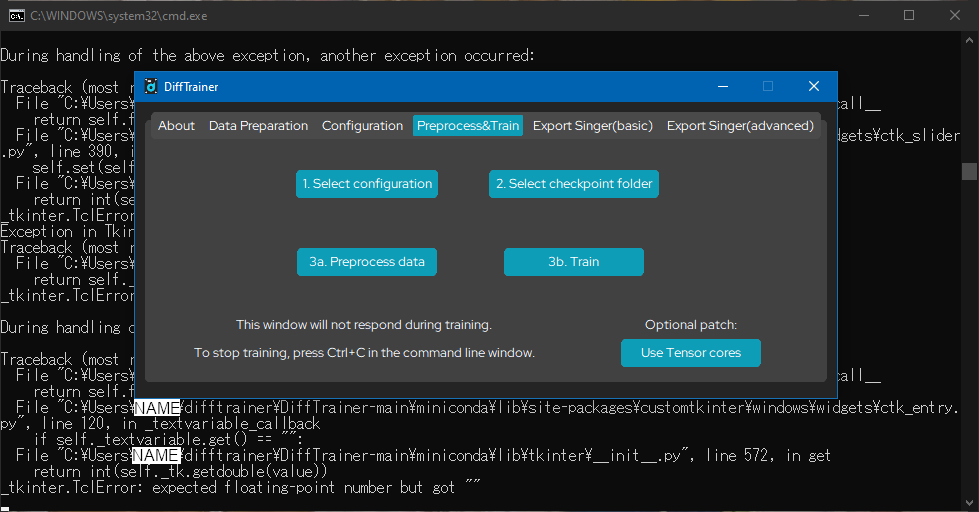
the first thing you will do is select configuration. select the "acoustic.yaml" file. you will now create checkpoint folders. i like to make 2, one for acoustic, and one for variance. i named mine "auc" and "var." now you can select your acoustic checkpoint folder. just in case, also click "use tensor cores." now you can click "preprocess data" and let it run until it finishes. you will know it's done when the difftrainer window starts responding again and the command prompt isn't doing anything.
and now you click train and let it go off for however long it takes. i typically do it before bed or before going out somewhere. let it train for as long as you'd like. the more steps, the higher the quality of your diffsinger. the limit is 100000 steps.
if you'd like to check the progress and view graphs, listen to audio, etc to see the progress it makes as it trains, launch tensorboard. to launch tensorboard, you must:
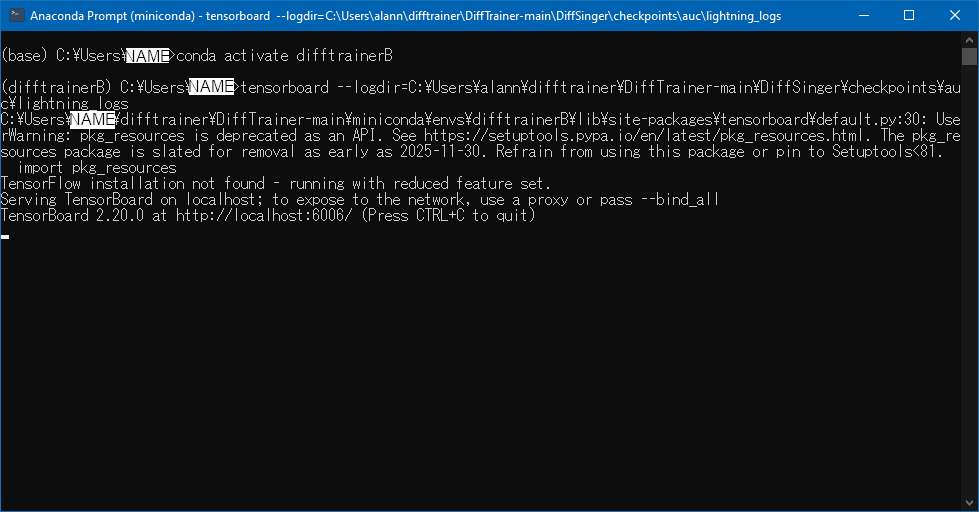
now that you're done training acoustic, it's time to train variance. to do so, go back to the configuration tab and select "Type: Variance." you will now select a new checkpoint folder. for me, the folder is "var." do not save it in the same folder as where you put the acoustic checkpoints, they will be overwritten if you do that. now click "save configuration."
for me, the langloader sometimes decides to break at this point and i have to close and reopen difftrainer. ensure that the exact same settings are selected as when you did the configs for acoustic earlier, minus the changes made in the paragraph above.
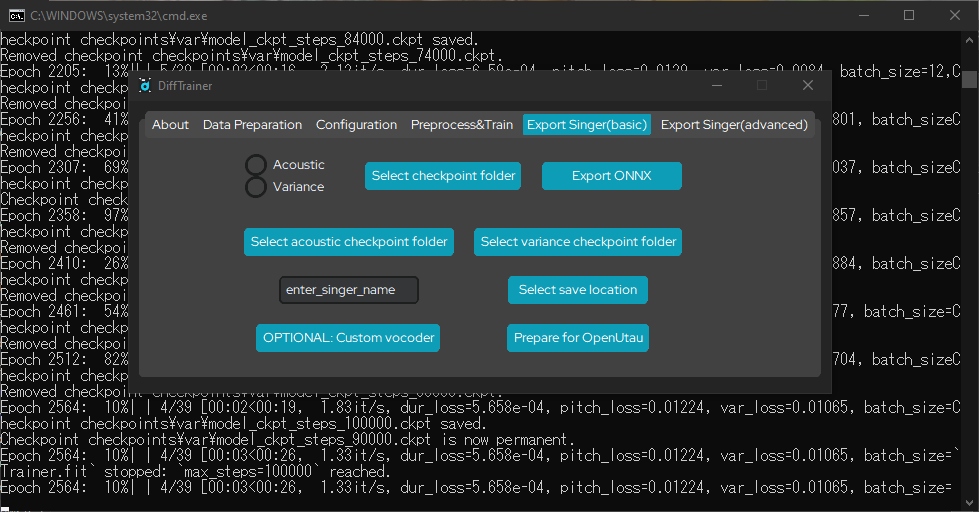
you are now on the preprocess and train tab again. you will select configuration again this time, but instead it will be "variance.yaml." your checkpoint folder will also be "var" instead of "auc." you can now preprocess your data and train again just as you did before, just with the lightning_logs in the "var" folder. you can open tensorboard in the same way as above as well. just keep in mind that there is no audio to listen to when training variance.
now that you are done training, it is now time to export your singer. you will click the acoustic button, then the "select checkpoint folder" button. you will select the acoustic checkpoint folder. once your acoustic checkpoint folder is selected, click "export ONNX" and wait for it to finish exporting. your command prompt will tell you when. you will now click the variance button, click the "select checkpoint folder" button, select your variance checkpoint folder, and then export ONNX again. once it finishes, you will click the "select acoustic checkpoint folder" button and select your acoustic checkpoint folder. you will then click the "select variance checkpoint folder" button and select your variance checkpoint folder. you will now type in your singer's name with no spaces or special characters. the diffsinger i am making is named "tsukuyomi sena," but for the purposes of naming it here, i just put "sena." you will now select where you want your diffsinger to be saved. put it in your openutau "singers" folder. after this, click "prepare for openutau." you are now done using difftrainer.